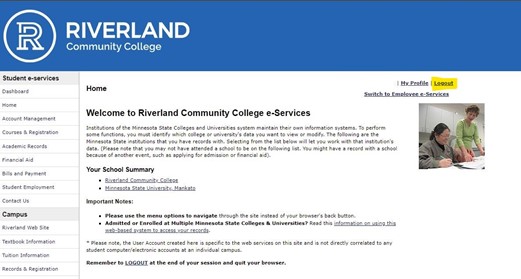
How to update your personal email address in e-Services
Follow these steps to update your personal email address in e-Services. This helps make sure Riverland can reach you with important account and student information.
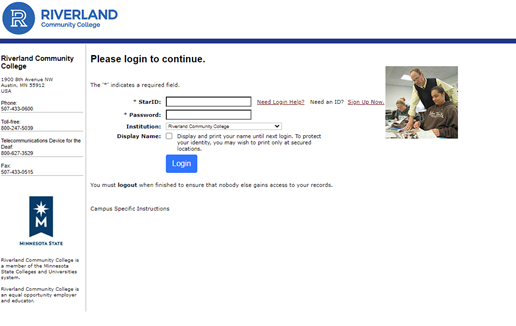
Step 1: Log in to e-Services
Log in to e-Services using your StarID and StarID password.
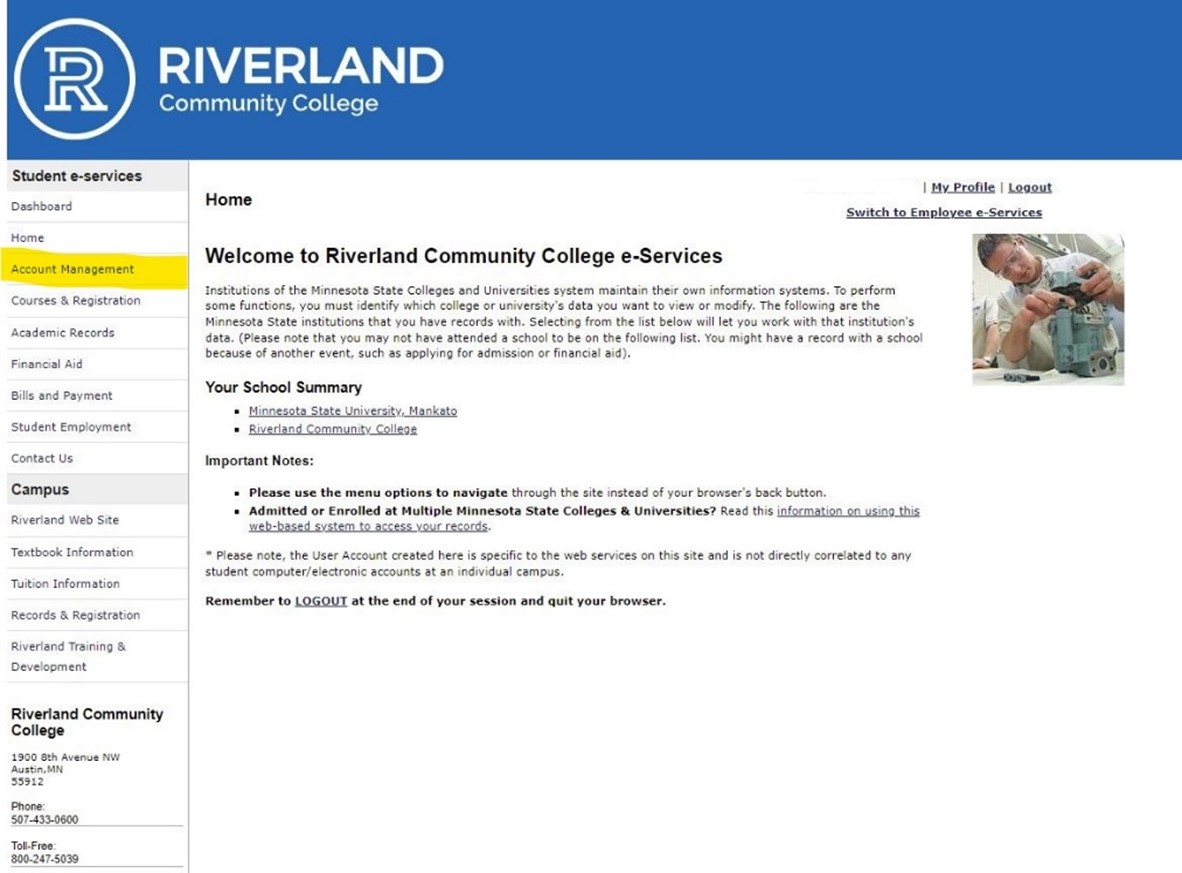
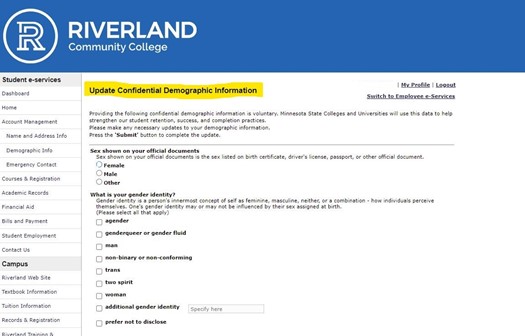
Step 2: Select Account Management
In the menu on the left side of the screen, click Account Management.
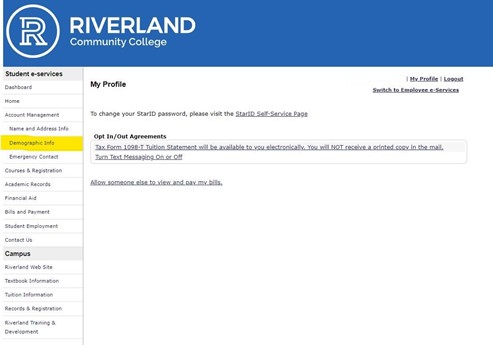
Step 3: Select Demographic Info
Click Demographic Info.
Step 4: Scroll to the bottom
Scroll to the bottom of the page.
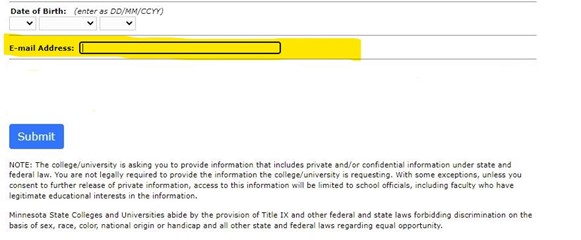
Step 5: Enter your personal email address
Enter your current personal email address, then click Submit.
Step 6: Log out
When you are finished, click Logout in the upper right corner of the screen.